Sell Cell says that 40.4% of people change their phones every 2 or 3 years, making data transfer an important concern. Among all data types, contacts are a major priority for Android and iPhone users because they are stored in Google/iCloud accounts, SIM cards, or local storage.
The built-in transfer methods do not work as expected, and this article explains why. There are tools that can be a simple and effective choice to transfer data to a new phone, including contacts.
Part 1. How Contact Storage Works Across Devices
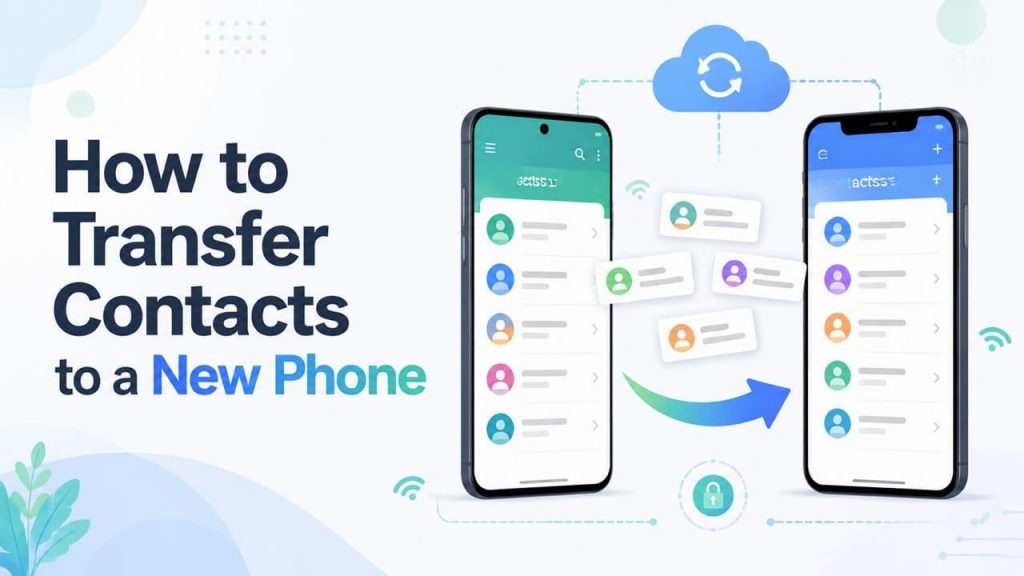
Modern smartphones handle contact storage through cloud integration, though the native approach differs. On Android, they are synced directly to the Google account or saved in the device’s local storage and SIM cards. On iPhones, contacts can be stored locally or synced through cloud ecosystems like iCloud and other linked accounts, such as Gmail.
Part 2. Why Do Official Transfer Methods Sometimes Fail?
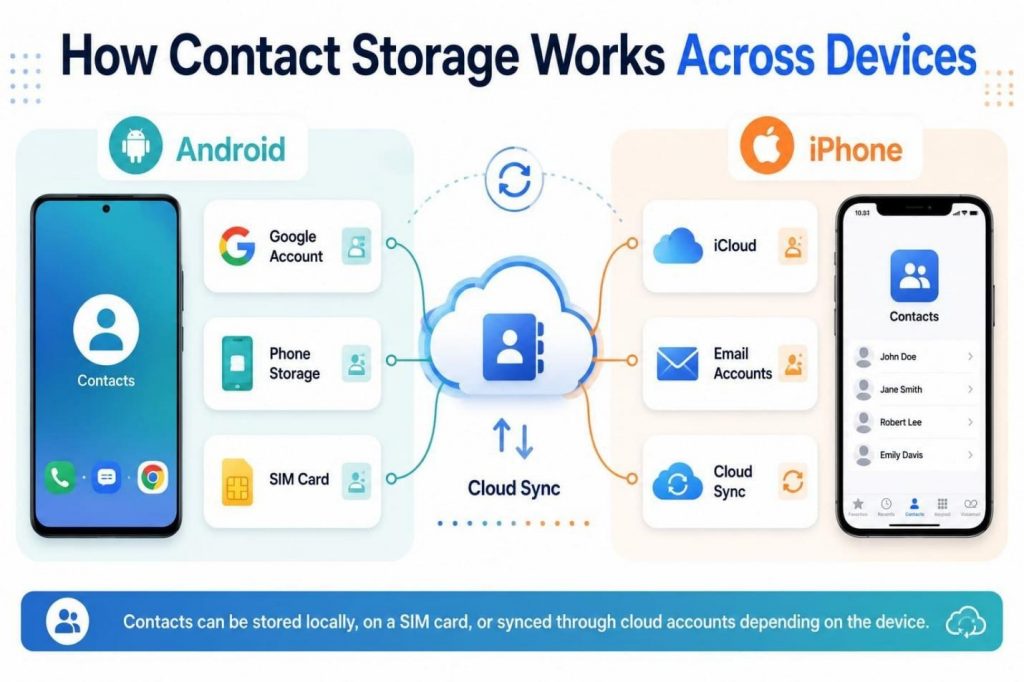
Given the basics, you might wonder how to transfer data from one phone to another, including contacts. However, note that official methods have certain limitations that can cause contact transfer to fail. Google Sync and iCloud require the correct accounts and successful synchronization; incomplete setup or sync issues can prevent some contacts from appearing.
Additionally, Apple’s Quick Start feature only works for iPhone-to-iPhone transfers during setup. If you use the SIM card transfer method, it can skip modern information such as email addresses and notes. This is because SIM memory usually supports limited contact details and may not preserve additional information like emails, notes, or custom fields.
Why Dedicated Transfer Tools Are a Smarter Alternative
Phone transfer tools have the ability to make direct and offline connections between Android and iOS. In addition, they don’t impose system compatibility limitations and let you move multiple data types in one go. Most of all, they ensure all the email addresses, physical locations, and custom notes associated with the contacts remain intact when moved.
Part 3. How to Transfer Data from One Phone to Another
Unlike official methods, data transfer tools can be a suitable choice to transfer data to a new phone. As an option, users can consider Dr.Fone – Phone Transfer for Android and iPhone to move contacts and other data types in bulk. When the official method includes transfer direction limits, it can transfer contacts across platforms in a few simple steps.
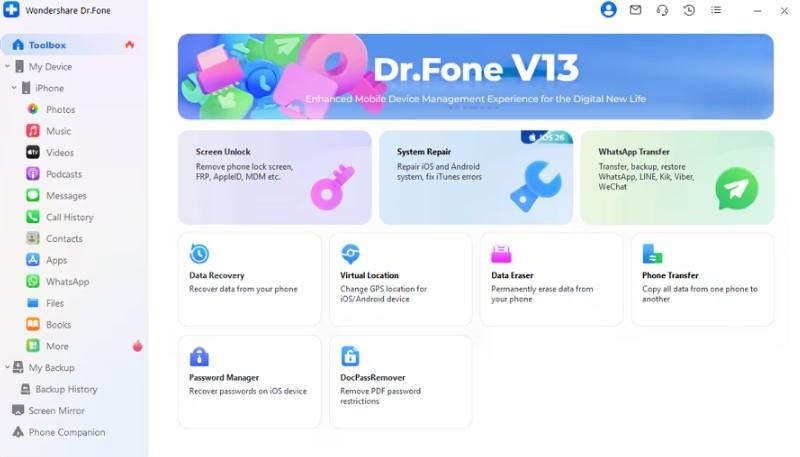
From iOS to Android, you can share 12 data types, and 8 from Android to iOS. Since the tool is compatible with Android 16 and iOS 27, it does not require cloud backups and only requires a secure USB connection. With the Flip icon, you can determine the source and target devices and preview the shared contacts and other data to determine accuracy.
Key Features
- Wide Device Compatibility: It supports 8,000+ iOS and Android devices and is also available on Windows and Mac.
- No Factory Reset Needed: To move contacts or other data, it needs no reset and is ideal for all types of users.
- Fast Transfer Speed: It claims to transfer data across platforms in less than 10 minutes while keeping all data intact.
- Selective File Transfer: In addition to bulk transfers, users can choose which types of data they want to share between Android and iPhone.
Ultimate Guide to Transfer Contacts from iOS to Android or Android to iPhone
To test the claims, you can follow this practical guide and learn how to transfer data from one phone to another, including contacts:
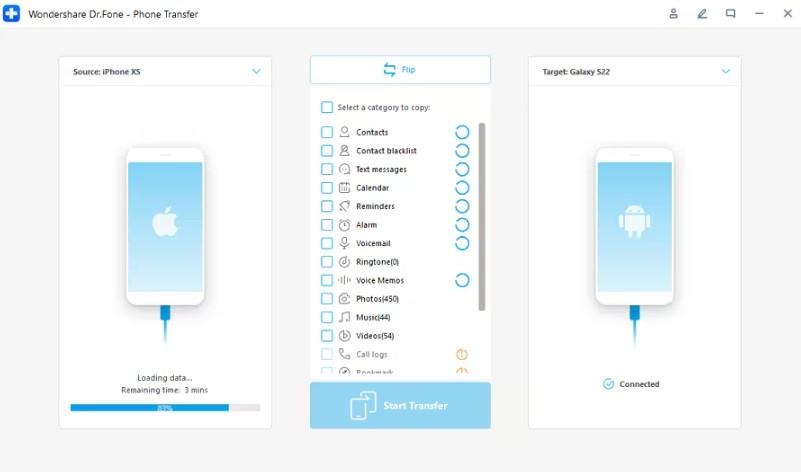
Step 1. Flip Devices on Transfer Tool
Open the Phone Transfer tool, connect your devices, and use the “Flip” icon to identify the source and target devices.
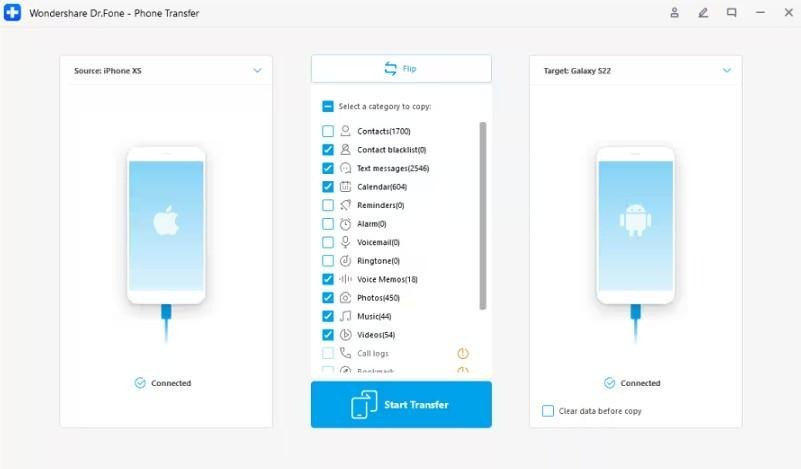
Step 2. Move the Contacts from iOS to Android
Choose “Contacts” along with other data types, then press the “Start Transfer” button to complete the process.
Part 4. Quick Tips to Keep Your Contacts Safe
To keep your contacts safe, follow the 5 simple tips mentioned below and avoid data loss in the future:
| Tip | What to Do |
| Backup Regularly | Sync contacts to iCloud or Google every few weeks |
| Enable Auto-Sync | Turn on automatic contact sync in device settings |
| Export as VCF | Save a local VCF copy for offline backup |
| Avoid SIM-Only Storage | Don’t rely on SIM cards as your only contact backup |
| Verify After Transfer | Double-check contact count and details post-transfer |
Conclusion
Sharing contacts across devices can be stressful when cloud, SIM, and system transfer methods have limitations. As a result, experts suggest using a specialized to transfer data to a new phone, including contacts. With bulk and selective transfer options, users can preview the shared contacts across platforms.