Every business accumulates paper it never asked for. Delivery receipts, signed contracts, handwritten meeting notes, expense slips from a trip three months ago. Adobe Scan exists to make that pile addressable, and it does the job better than most of the free scanner apps that clutter the Play Store.
The app is listed under Productivity, published by Adobe, and it is free. Its core promise is narrow: point a camera at a document, get back an Adobe PDF with recognized text inside it. That narrowness is the reason it works well.
What the capture screen does before you press anything
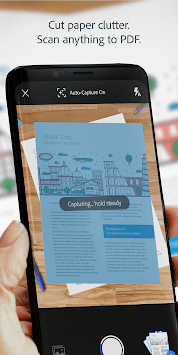
Open the app and you are in camera mode immediately. There is no menu to navigate, no “new project” dialog. The viewfinder hunts for the edges of whatever is in front of it, and when it locks on, a blue overlay snaps to the page boundary.
If the detection is confident, it fires the shutter on its own. This catches people off guard the first few times. You line up a receipt, hesitate, and the app has already taken three shots because you drifted slightly and it re-detected.
There is a mode selector at the bottom: Document, Whiteboard, Book, Business Card, and ID Card. These are not cosmetic. Book mode expects a spine and splits the spread into two pages. Business Card mode runs the OCR against a contact template and offers to save the result to your address book, which is the single most useful feature for anyone who comes back from a conference with forty cards in a jacket pocket.
Whiteboard mode is the one that surprises people. It flattens glare and pushes marker strokes toward solid color, so a photo of a messy planning session comes out legible rather than washed out.
The cleanup pass is where scans stop looking like photos
After capture, you land in a review screen with a thumbnail strip along the bottom. Every page is editable individually, and the controls are the ones that matter:
- Adjust borders, which is essential when a contract page sits on a wood desk and the app grabs the grain as an edge
- Rotate, for the page you shot sideways
- Color filters, including grayscale and a high-contrast whiteboard setting
- Delete or retake a single page without discarding the batch
- Reorder pages by dragging thumbnails
Reordering matters more than it sounds. Scanning a twelve-page agreement means occasionally missing page seven and shooting it at the end. Dragging it back into place takes two seconds.
OCR happens quietly in the background
The text recognition does not run at capture. It runs after you save, and on a fresh scan the app shows a “Recognizing text” state on the file card in your list. Once it finishes, the PDF carries an invisible text layer under the image, so the page looks exactly like the paper but responds to search.
This is the part businesses care about. A folder of 400 scanned invoices is useless if you have to open each one. With the text layer in place, a search for a vendor name or an invoice number surfaces the right file.
The recognition handles clean printed text very well. Handwriting is a different story: block capitals sometimes come through, cursive rarely does. Treat handwritten notes as images you can find by filename, not by content.
Adobe Scan on a Windows desktop
There is no native Windows build of Adobe Scan, so running it on a PC means an Android emulator. BlueStacks is the usual starting point for people who just want the app running. Genymotion suits anyone who already works with virtual devices and wants finer control over the emulated hardware.
The one setup detail that makes or breaks this is the camera. Adobe Scan is built around a live viewfinder, so the emulator has to map your webcam (or a phone used as a virtual camera) into the Android instance, otherwise the capture screen stays black. If you plan to feed it existing image files instead, the import-from-gallery path needs a shared folder between Windows and the emulated storage; anyone weighing whether to download Adobe Scan for PC should sort out that camera passthrough first, since a black viewfinder is the most common complaint in emulator setups.
A webcam pointed at a desk is a poor substitute for a phone camera held over a page. Where the desktop version earns its place is in the second half of the workflow: reviewing scans on a large screen, renaming files properly, checking that OCR caught the right numbers, and sorting everything into the right cloud folder with a real keyboard.
Where the files go and what that means for a team
Saved scans land in Adobe Document Cloud tied to your Adobe ID. From the file list you can share a link, export to a local copy, or hand the PDF off to other Adobe tools. If your office already runs on Acrobat, the handoff is the smoothest part of the experience.
If it does not, you are still storing business documents in Adobe’s cloud by default, and that is a conversation to have with whoever owns your data policy before you scan a stack of signed contracts.
The free tier covers capture, OCR and basic export. Deeper editing, combining files and some conversion options sit behind an Acrobat subscription, and the app is not shy about surfacing those prompts.
One practical caveat: name your files at save time. The app offers a suggested name pulled from the first line of recognized text, and accepting it blindly leaves you with a cloud folder full of documents called “INVOICE” and “Dear Sir or Madam.”